

Before you begin
- Use a computer for the connection and import steps, with EvryStay and Hostaway in separate tabs.
- Have access to your sign-up email and a Hostaway account with permission to manage integrations and create API keys.
- Check which Hostaway listings you want to add and whether any already exist in EvryStay.
- If someone else manages your Hostaway account, ask them to help with the Marketplace connection.
You will first connect and review properties, then configure the guest experience. A plan or checkout is shown only when required for the imported properties.
Step 1
Create and verify your EvryStay account
Already registered? Sign in and go to step 2. New customers can follow these steps:
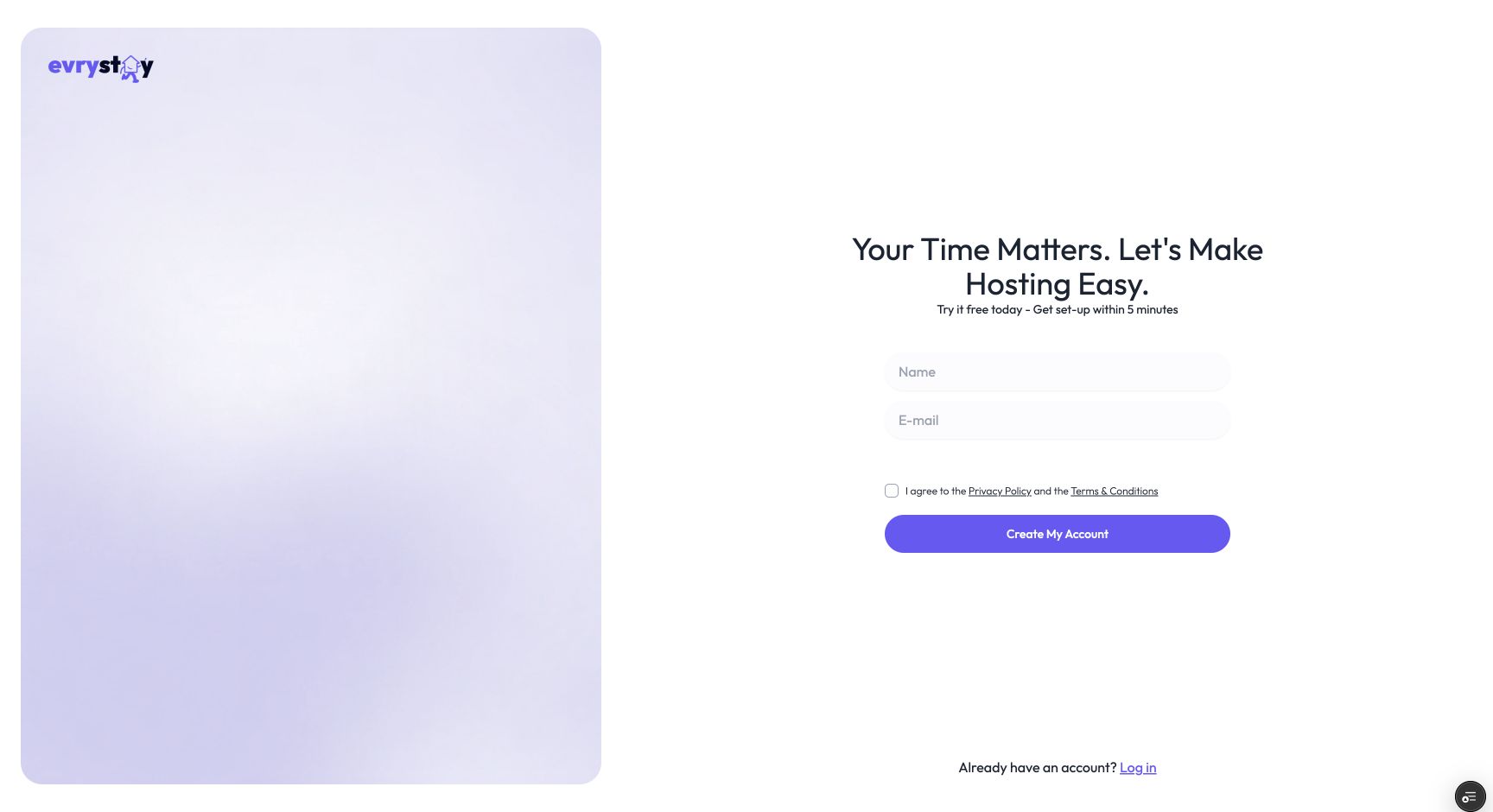
- Open Create your EvryStay account. Enter your Name and E-mail. Use an inbox you can access during setup.
- Read the Privacy Policy and Terms & Conditions linked on the form. If you agree, tick the checkbox and select Create My Account.
- Check your inbox for the verification email. Follow its verification instructions. If EvryStay asks for a code, enter the code from the email and select Verify. Keep your sign-up tab open while you check your email.
- Complete the welcome screen. Add your company name if you wish, create a password, and enter the same password in Confirm Password. Select Get Started.
Step 2
Choose Hostaway as your PMS
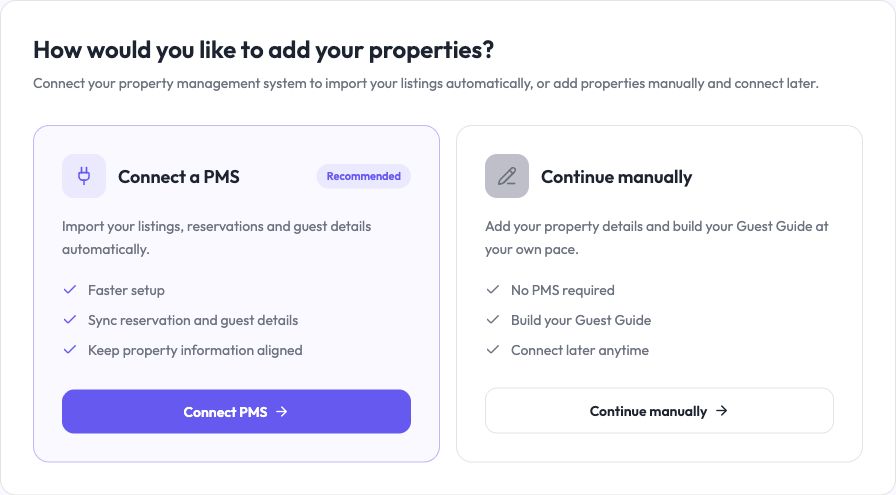
- In the setup flow, choose Connect a PMS using the Connect PMS button. This imports your properties from your property management system.
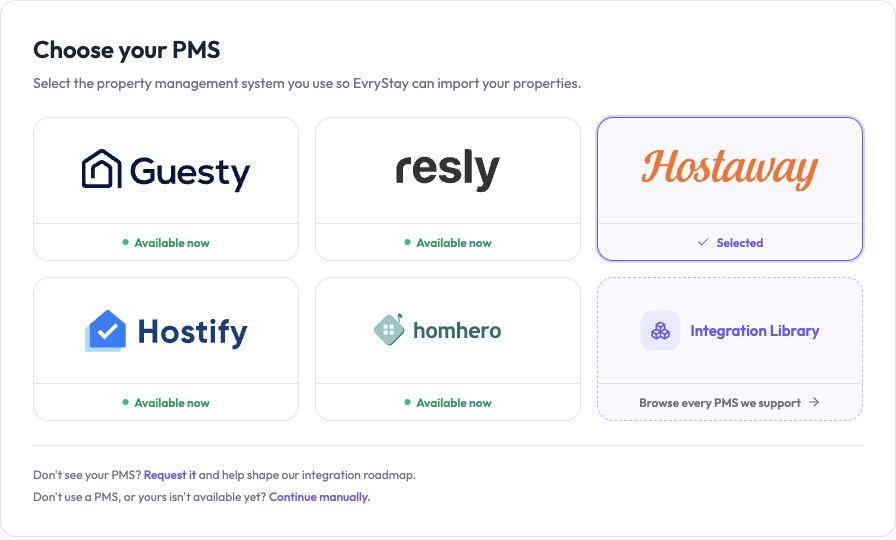
- On Choose your PMS, select the Hostaway card.
- Select Continue to open the Hostaway connection instructions. Keep this tab open while you create your Hostaway credentials.
For existing EvryStay customers: open Settings → Integrations to check your current connection. If you have no connected PMS, you can start from Connect your PMS.
Step 3
Create your API key in Hostaway Marketplace
- In a second tab, sign in to your Hostaway dashboard with an account that can manage integrations.
- Select Marketplace from the left-hand menu and find EvryStay.
- Open the EvryStay partner card using Connect or Connect/Configure. If the partner panel then shows another Connect button, select it.
- In the API-key dialog, select Create.
- Copy the Account ID and API Key shown by Hostaway. Save the key securely before closing the window; it is displayed only once.
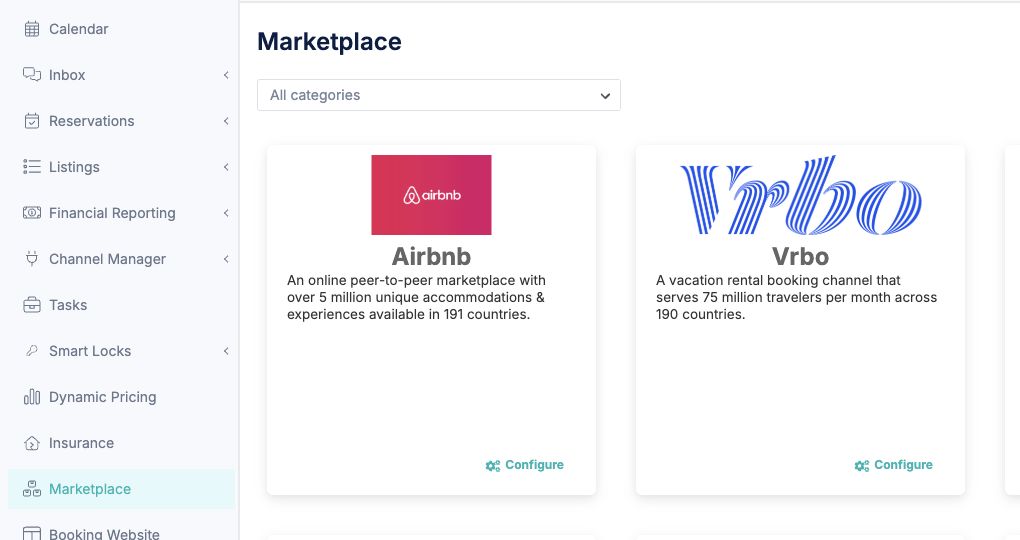
Use the key created through the EvryStay Marketplace listing for this connection. Hostaway’s Marketplace example (new tab) also illustrates the partner-card and key-generation sequence.
Step 4
Complete the secure connection
- Return to your EvryStay tab and select Connect Hostaway.
- The secure connection page opens through Calry, EvryStay’s integration partner. Enter your Hostaway Account ID and API Key in their corresponding fields.
- Check that both values are from the same Hostaway account and that you have not copied any extra spaces. Select Connect in the secure connection page.
- After authentication succeeds, return to EvryStay as prompted. EvryStay will discover your Hostaway listings and prepare the import review.
What to expect: a successful connection takes you back to the property import flow. If you see an error or are not returned to EvryStay, use the connection troubleshooting steps below.
Step 5
Review, match and import your properties
Review the listings EvryStay finds before starting the import. Matching a Hostaway listing to a property you already use in EvryStay helps you avoid creating a duplicate.
- Check each Hostaway listing and any suggested EvryStay property match. Confirm that the name and property details refer to the same place.
- For each listing, choose the appropriate action: connect it to an existing EvryStay property, add it as a new property, or skip it for now.
- If you use Accept all or Connect all, review the suggestions first. Use individual decisions when a match needs correcting.
- Select Start import once you are happy with your choices.
- Wait for the initial property import, then select Continue when available. Keep an eye on any errors or items that need attention.
Skipped listings can be reviewed later from Settings → Integrations. If the account has no listings to import, check that you connected the correct Hostaway account and that your listings are available there.
Step 6
Set up your guest-app appearance
- On the appearance step, review the guest-app preview and choose the background option you want. Depending on what is available, you can keep an existing property image, use the imported PMS image, choose the default background or upload an image.
- Set the guest-app accent colour and AI concierge name where your plan and available controls allow.
- Review the preview, then select Save & continue.
You can refine individual properties after onboarding. Check the actual guest guide as well as the preview before sharing it.
Step 7
Choose how Eve handles guest messages
If the Eve setup screen is shown, choose how Eve replies on your booking channels (such as Airbnb and Booking.com) for the imported properties. This setting controls channel replies; Eve in the Guest Guide replies automatically.
- Review then send
- Eve drafts channel replies for your team to review and send. Start here if you want to check replies before they reach guests.
- Auto-send
- Eve can send replies automatically. Review your property information and communication settings before choosing this mode.
- Off
- Your team handles replies on your booking channels.
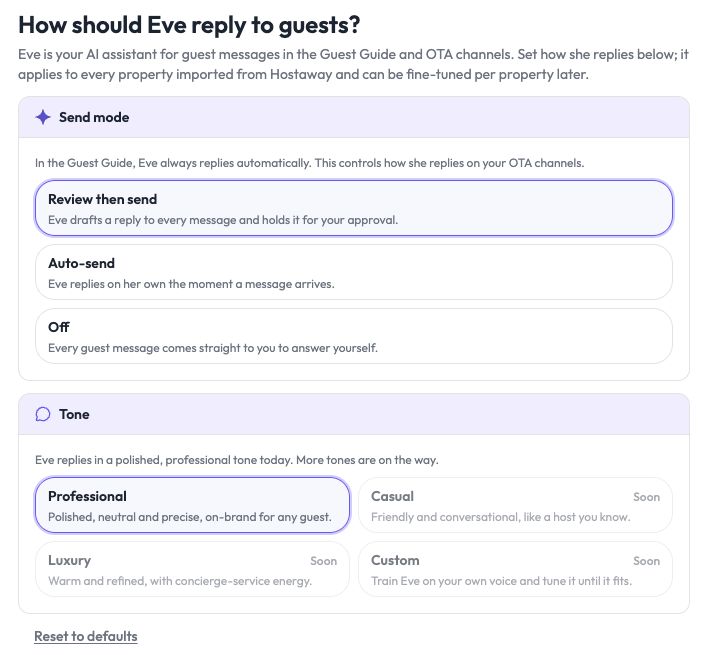
Select Apply & continue to apply your choice. Options marked Soon are not available to select. This screen may be skipped when you are adding listings to an existing connection.
Step 8
Choose a plan if prompted and finish setup
- If imported properties need a subscription, review the plans and choose the one you want.
- Select Monthly or Annual billing, then check the property count and total shown. Use the current checkout summary for the amount and terms.
- Continue through checkout if required. If your properties already have coverage or checkout is not needed, this step may be skipped.
- Complete the final setup screen and select Start now to open your host dashboard.
Check before sharing with guests
Open an imported property and work through these checks:
- Property details: check its name, cover image and Hostaway listing match.
- Guest guide: review the imported content, especially Wi-Fi, arrival instructions, access details, house rules and check-out information. Fill any gaps and review items that need your approval.
- Guest preview: open the preview and check the layout, branding, links and information as a guest would see them.
- Reservations: compare an upcoming reservation with Hostaway after sync completes. Check the property and stay dates.
- Guest communication: confirm Eve’s send mode and review your messaging workflows. Check how guests will receive their guide link before enabling automated messages.
- Activation: check that the properties you intend to use have the required plan and that any outstanding sync or setup issues are resolved.
If something does not look right, contact us before sharing the guide or enabling automatic replies.
Manage an existing connection
Open Settings → Integrations to review your Hostaway connection and any items under Needs attention.
- Add more listings: choose Review & add for unlinked Hostaway listings, review the property matches, then start the import.
- Link a property you already created manually: open the property’s Manage menu and choose Link to Hostaway.
- Correct a match: use Manage → Change Hostaway listing, select the correct listing and choose Update link. Review any warning about moving a listing from another property.
- Disconnect or switch: contact us first if you are unsure about the impact on ongoing syncing and guest communication. Revoking the Hostaway key can interrupt the connection.
Troubleshooting & support
I cannot find EvryStay in Hostaway Marketplace.
I have not received the verification email.
I closed the API-key window before copying the key.
The secure connection rejects my credentials.
The connection page did not open or did not return to EvryStay.
The import is taking time, or reservations and conversations are missing.
A Hostaway listing is not in EvryStay yet.
A property is linked to the wrong Hostaway listing.
I already use another PMS in EvryStay.
We can help you finish setup.
Email team@evrystay.com.au or book a support session. Include your EvryStay account email, the step you reached, the affected property name and the error message. Leave out API keys, passwords and guest information.